Adding images
Add images to your project folder and have them automatically show up on your website.
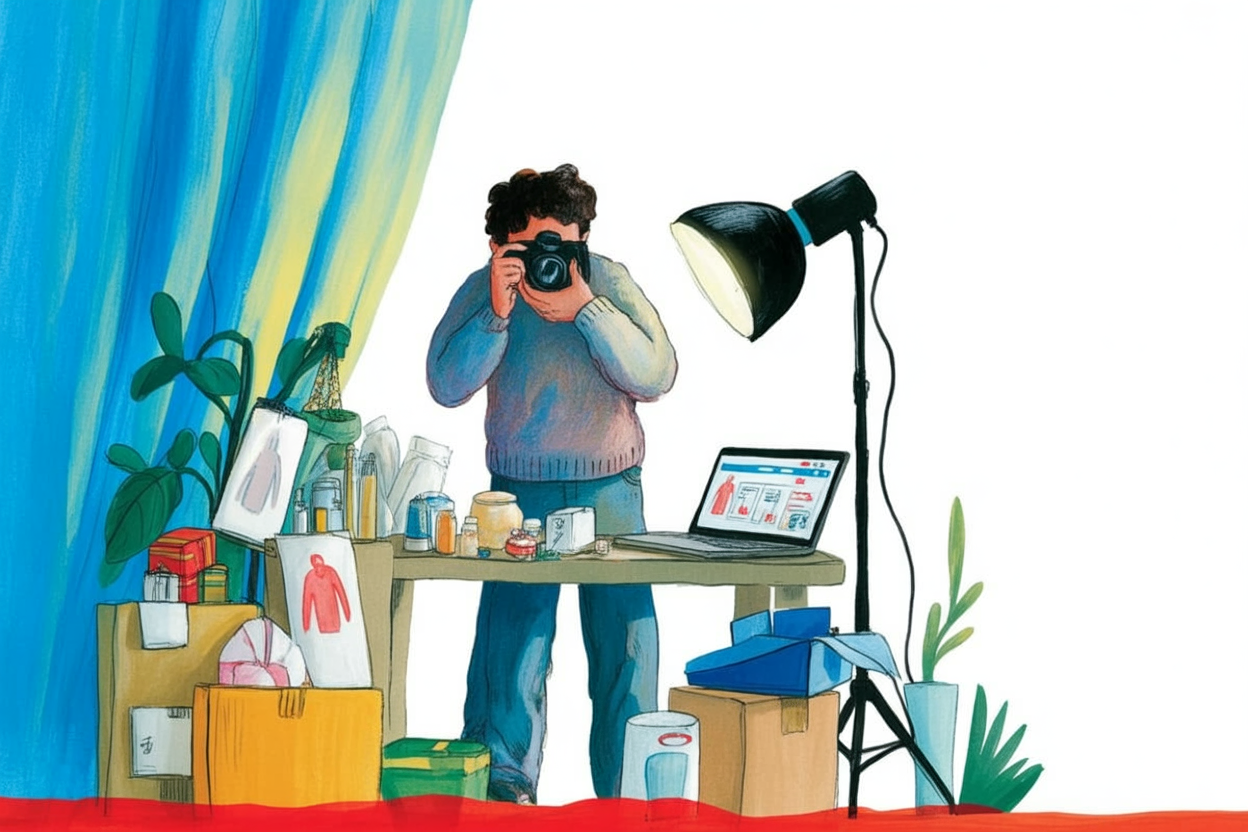








When you add images to a folder, they will automatically show up on top of your project's page.
Page text will appear below the images like this.
Image support in 4567
4567 automatically detects and displays images in several formats:
- JPEG/JPG - Standard photo formats
- PNG - High-quality images with transparency
- GIF - Animated images
- WebP - Modern compressed format
- SVG - Vector graphics and icons
How images work?
- Automatic Detection - Drop any supported image file into a project folder, they will show up below the project title and description.
- Instant Display - Images appear immediately on the project page.
- Thumbnail Generation - First image automatically becomes the homepage thumbnail.
- Image Optimization — 4567 automatically optimizes your images for web.
Referencing images in Markdown
If you want to place images inside your text (like this guide does), you need to reference them using their file path.
Important: While the website URL for a page might change based on the title you set in project.md, the path to your images always follows your actual folder structure.
- Page URL:
/adding-images/(derived fromtitle: "Adding images") - Image Path:
/static/02 Start here/03 Add images/picture.jpg(derived from actual folder names)
So when linking images manually, always use the real folder names:
<img src="/static/Your Folder Name/Your Image.jpg">